How to Check If an APK Is Safe Before Installing on Android
Sideloading—the process of installing apps from outside the official Google Play Store—is one of the best things about owning an Android device. It allows you to access regional apps, older versions of your favorite tools, and innovative apps that aren't available on mainstream stores.
However, downloading files from the internet always carries a risk. A "free" version of a paid app might come bundled with hidden trackers, or a utility tool might be a front for data-stealing malware. For users in India and across the globe, staying safe while exploring new apps is a top priority.
In this guide, we will show you exactly how to check if an APK is safe using professional tools, simple observation, and smart security habits.
Quick Answer
To check if an APK is safe, you should follow a three-step verification process: first, only download from trusted sources like FluxApps.net or APKMirror. Second, upload the file to an online scanner like VirusTotal to check for malicious code across 70+ antivirus engines. Finally, review the app permissions during installation; if a simple app (like a calculator) asks for access to your SMS or contacts, it is likely unsafe. Always keep Google Play Protect enabled as your final safety net.
What is an APK File?
An APK (Android Package Kit) is the file format Android uses to distribute and install applications. It is essentially a compressed folder containing the app’s code, assets, and security certificates. When you download an app from the Play Store, the system handles the APK in the background. When you "sideload," you are manually handling that package.
Why Safety Matters
Because APKs are easy to modify, malicious actors can take a legitimate app, inject it with harmful code, and re-distribute it. This can lead to:
Identity Theft: Stealing your personal details and passwords.
Financial Loss: Accessing banking apps or sending premium SMS.
Adware: Flooding your device with unclosable advertisements.
Performance Issues: Using your phone’s resources for crypto-mining or botnets.
Step 1: Use a Trusted APK Source
The first line of defense is where you get the file. Not all download sites are created equal. Some sites prioritize user safety, while others profit from distributing "modded" or "cracked" software that is often infected.
Top Trusted Sources for 2026:
FluxApps.net: Our platform focuses on discovery and safety, providing verified links and helpful reviews for Android utilities.
Google Play Store: The official and safest choice for most users.
APKMirror: Known for manual verification of cryptographic signatures to ensure files haven't been tampered with.
F-Droid: The gold standard for open-source apps.
Official Developer Websites: Downloading directly from companies like WhatsApp or Epic Games.
Safety Note: Avoid sites that promise "Premium Unlocked" or "Unlimited Money" versions of paid apps. These are the most common vehicles for Android malware.
Step 2: Scan the File with VirusTotal
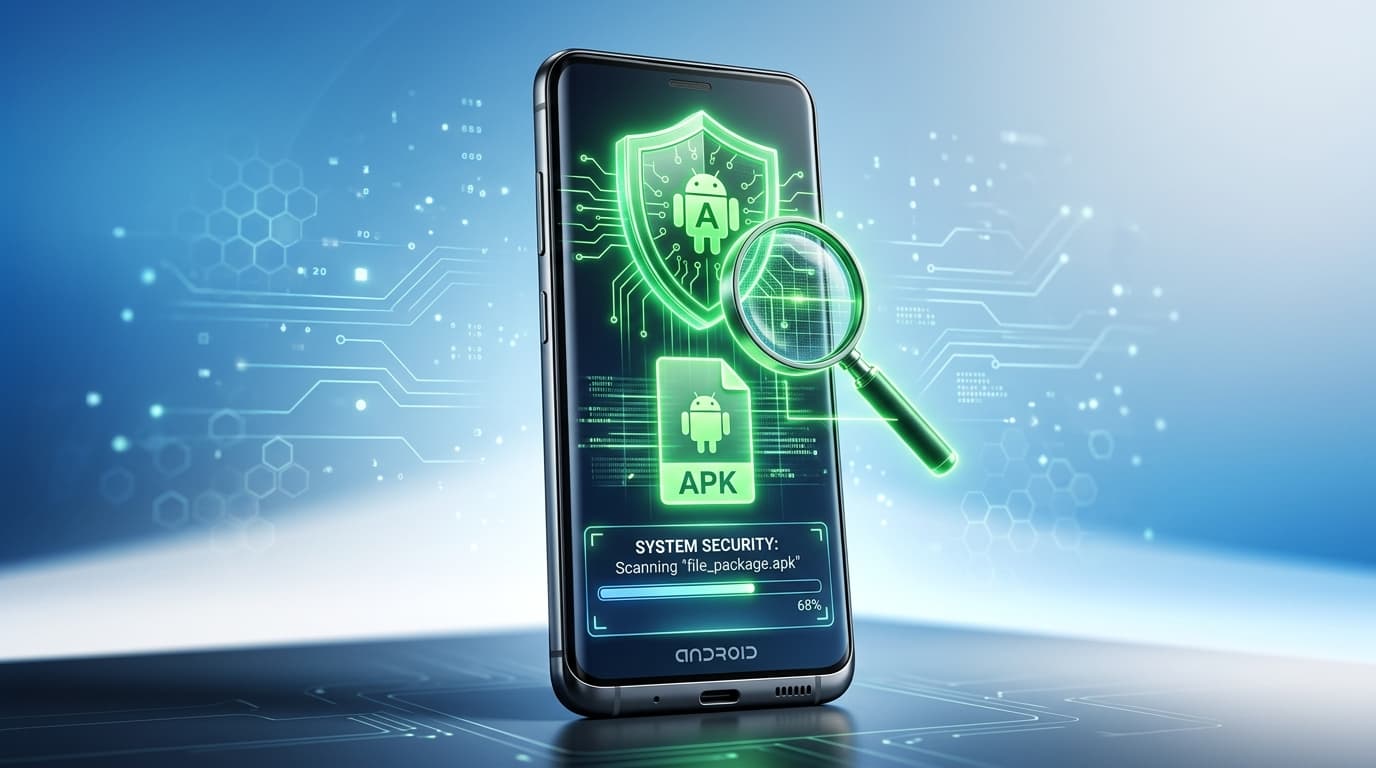
Before you even click the "Install" button, you should scan the file. You don't need to install expensive antivirus software on your phone to do this.
VirusTotal is a free service that analyzes files and URLs to detect types of malware.
How to use it: Go to VirusTotal.com, upload your APK file, and wait a few seconds.
What to look for: It will show you results from over 70 security vendors (like Bitdefender, Kaspersky, and Symantec).
The Verdict: If 0 or 1 engine flags the file, it’s likely a "false positive" and safe. If 5 or more engines flag it, delete the file immediately.
Step 3: Analyze App Permissions
When you start the installation process, Android will show you what parts of your phone the app wants to access. This is the "moment of truth."
Permission Red Flags
App Type | Normal Permissions | Red Flag Permissions |
Wallpapers | Storage, Internet | SMS, Contacts, Microphone |
Simple Games | Storage (for saves) | Location, Call Logs, Camera |
Calculator | None | GPS, Contacts, SMS |
Photo Editor | Storage, Camera | Phone Identity, Microphone |
If an app asks for Accessibility Services or Device Administrator rights without a very clear and logical reason (like a password manager or a security app), do not grant them. These permissions give the app total control over your screen and data.
Step 4: Check the App Version and Developer
A safe APK should have a clear history. Before installing, do a quick search for:
The Developer Name: Is this a known developer with a good reputation?
The Version Number: Does the version you downloaded match the latest release on official sites?
The Hash (SHA-256): Advanced users can check the "fingerprint" of the file. If the hash of your downloaded file doesn't match the one listed on the developer's site, the file has been altered.
Step 5: Leverage Google Play Protect
Never disable Google Play Protect. Even for sideloaded apps, Play Protect runs a background scan. If it warns you that "This app is harmful," believe it.
In India, where many users rely on third-party utility apps for data management or localized services, Play Protect is the most important built-in tool for mobile security.
Comparison: Safety Methods at a Glance
Method | Protection Level | Best For |
Source Checking | High | Avoiding the "wrong neighborhood" of the web. |
VirusTotal Scan | Maximum | Detecting known viruses and trojans. |
Permission Audit | Medium | Catching "privacy-leaking" apps that aren't technically viruses. |
Play Protect | Continuous | Real-time monitoring after installation. |
FAQ: Frequently Asked Questions
1. Is it safe to download APKs from FluxApps.net?
Yes. FluxApps focuses on app discovery and provides links to reputable versions of apps. We recommend users always follow the scanning steps mentioned in this guide as a standard "best practice" for any download.
2. Can an APK contain a virus that isn't detected by scanners?
It is rare, but "Zero-day" exploits exist. This is why checking permissions is so important. Even if a scanner misses a virus, you can see if the app is trying to access data it shouldn't have.
3. What should I do if I already installed a suspicious APK?
Immediately uninstall the app. Go to Settings > Security > Google Play Protect and run a scan. You may also want to change your primary passwords and check your bank statements for unauthorized charges.
4. Does "sideloading" void my phone's warranty?
Generally, no. Sideloading is a native feature of Android. However, if you install a malicious app that causes software damage, it might complicate your support options.
5. Why do some safe apps get flagged by VirusTotal?
This is called a "false positive." It usually happens with apps that use encryption or specific compression tools that look similar to those used by malware creators. If only 1-2 minor engines flag it, the app is likely safe.
Key Takeaways
Start with Trust: Stick to reputable sources like FluxApps.net or APKMirror.
Scan First: Use VirusTotal to check for malware before installing.
Check Permissions: Ensure the app's requests match its functionality.
Keep Security On: Never turn off Google Play Protect.
Stay Skeptical: If a paid app is offered for free, it’s probably a trap.
Conclusion
The freedom to install any app you want is what makes Android great. But with that freedom comes the need for a little bit of tech-savviness. By knowing how to check if an APK is safe, you protect your photos, your money, and your privacy.
Before your next download, take 30 seconds to run a scan and double-check those permissions. It’s the difference between a great new tool and a major digital headache.
Written by FluxTech Insider, the editorial voice of FluxApps for Android app discovery, app reviews, and mobile software guides.